What happened, how to respond and how to avoid it in the first place
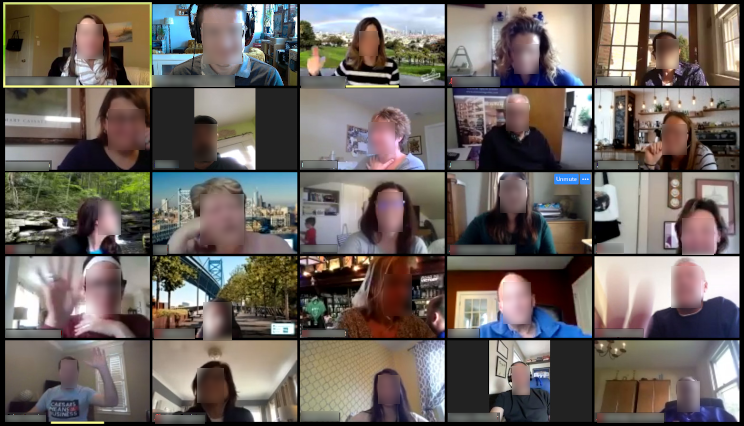
I’m a board member for the Philadelphia chapter of PCMA, and was running our last virtual happy hour when it was “zoom bombed”. The whole incident probably took less than a minute or two before I removed the offenders. Afterwards we proceeded as usual while I’ve heard of other meetings that had to end entirely due to trolls. But it was still an unfortunate disruption and there are steps we could have taken to avoid the issue. I thought it might be helpful to share the experience with our industry peers.
Key takeaways:
- Review your security settings before you start a meeting
- Always have a host to keep an eye on things, separate from presenters
- If your event isn’t public do not post the link publicly, and you’ll be able to avoid 99% of possible issues
What Happened
Our account was set up with the waiting room on. That means as people try to join the meeting, the host has to let them in. Because I don’t know everyone and our happy hour is open to the public (and the whole point is to bring in new attendees), I had just been letting people in one by one as long as they didn’t raise a red flag.
About half an hour in, some new people were joining, and they had names that were along the lines of first name + last initial. I let in about three to four people, and then started getting a bunch more waiting room requests (10-15) all at once so I stopped letting people in. Those first few who had already joined were clearly coordinated because they waited a minute or two to start trolling, right as all the new requests started coming in.
The first thing they did was share the “whiteboard” and begin writing offensive words. Once they did, I disabled screen sharing. Then they started “talking” (using a voice to text program with a computer voice) and saying offensive things so I muted all participants until I could boot the offenders. I saw at least one of them was replacing their webcam video with some kind of pre-recorded video which I gather was offensive too. (There is software that creates a “virtual webcam” so the user can share whatever they want as if it’s a web camera) Once I removed all the bad actors I unmuted the rest of the normal participants.
I was focused on resolving the issue so wasn’t sure how long it took, but afterwards a couple other participants told me it was less than a minute. Even so, one attendee told me later they kept thinking about the disturbing video one of the trolls was playing via their webcam.
How to Respond If It’s Happening Right Now
If you’re the host in a zoom meeting that’s being disrupted, you should:
- Click on the “security” shield icon at the bottom of the screen.

- If it’s not already enabled, turn on “waiting room”
- Uncheck “Allow participants to share screen”.
- Uncheck “Allow participants to rename themselves” (This will prevent trolls from renaming themselves to a legitimate attendee of the meeting)
- Open the “manage participants” tab and select “mute all”. If you have a presenter then unmute that specific person so they can continue.

- Hover over the bad actors, either their image or their name in the participants list. There should be either a “…” or “more” menu, and one of the options will be “remove.” Remove the bad actors.


- Once you’ve eliminated the trolls and your program calls for it you can unmute all participants.
How to prevent it from happening at all
The simplest solution is to not share your zoom link publicly. This of course may not be an option for public events. For public meetings you should always have a host (separate from those speaking) who is familiar with the controls.
Zoom has recently improved their default settings to be more secure. Even so, there were some settings I thought were supposed to be defaults which apparently weren’t, or maybe they were grandfathered in. So it’s worth looking at, because these settings will apply to all future meetings. Review your settings in the web based menu by going to this address: https://us02web.zoom.us/profile/setting
- Turn on the waiting room by default. Our issue this week, even though it was less than a minute, could have been avoided if I didn’t admit people I didn’t know to the meeting.
- Turn off the ability for participants to share their screen
- Turn off “whiteboard: allow participants to share whiteboard during a meeting”
- Turn off “Join before host: allow participants to join the meeting before the host arrives”
- You can turn off “allow participants to rename themselves” so it’s easy to track down a bad actor. This is less of an issue until you know you have trolls in the session with you.
- Turn on “Only authenticated users can join meetings from web client” which requires users to sign into zoom first before joining a meeting.
- Turn on “Only authenticated users can join meetings”
- It’s possible to require registration – you need to have a paid account, and have to select the option from the web portal (not from the desktop app).
- You could potentially create a registration page using a separate event registration platform. People could register and then receive the event link via a confirmation email.
Who are these people?
My impression is these folks are mostly teens with a mix of young adults. They enjoy shocking others and getting attention. They’re technically adept, but not “hackers”.
They’re coordinating via another platform – something like a discord channel, chat group or message board. This was shown in the way they all arrived nearly simultaneously. They probably found the link using automated tools – for example you can search websites in order to find all links that match the pattern of a zoom meeting. They could also be looking at benign websites that aggregate online events. The trolls were probably going down a list of links to see which ones led to an active/vulnerable meeting. Once they found one they would share the link with the rest of their friends who would all pile into the same meeting.
—
I hope this was helpful! I had only heard about other meetings being disrupted second hand so it was educational to see it in person. If you have any questions please feel welcome to reach out, I’m glad to help.
On that note, I’ve recently starting holding “office hours” where I make myself available to answer your webcasting/software/event tech related questions. Feel welcome to check it out. And of course I’m always glad to talk about audio visual / production for your event.
Leave a Reply